
With the updated TrioLearn user interface, finding and enrolling in courses is now more seamless and intuitive. Whether you already know what course you’re looking for or just want to explore what’s available, you can easily search or browse the catalog. Follow the steps below to get started.
Option 1: Search for a specific course
- a) On the Home page, type a keyword into the Search for a course box and click the search icon.

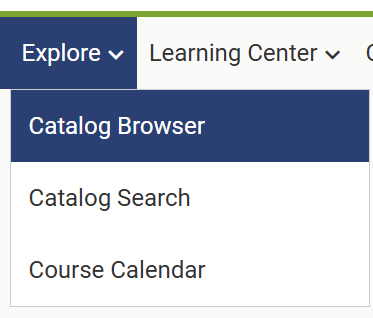
- b) For more refined results, hover over Explore in the menu and click Catalog Search.

- c) Click the Filter button to narrow your search results by course type, vendor, category, subject, or language, then click Apply.
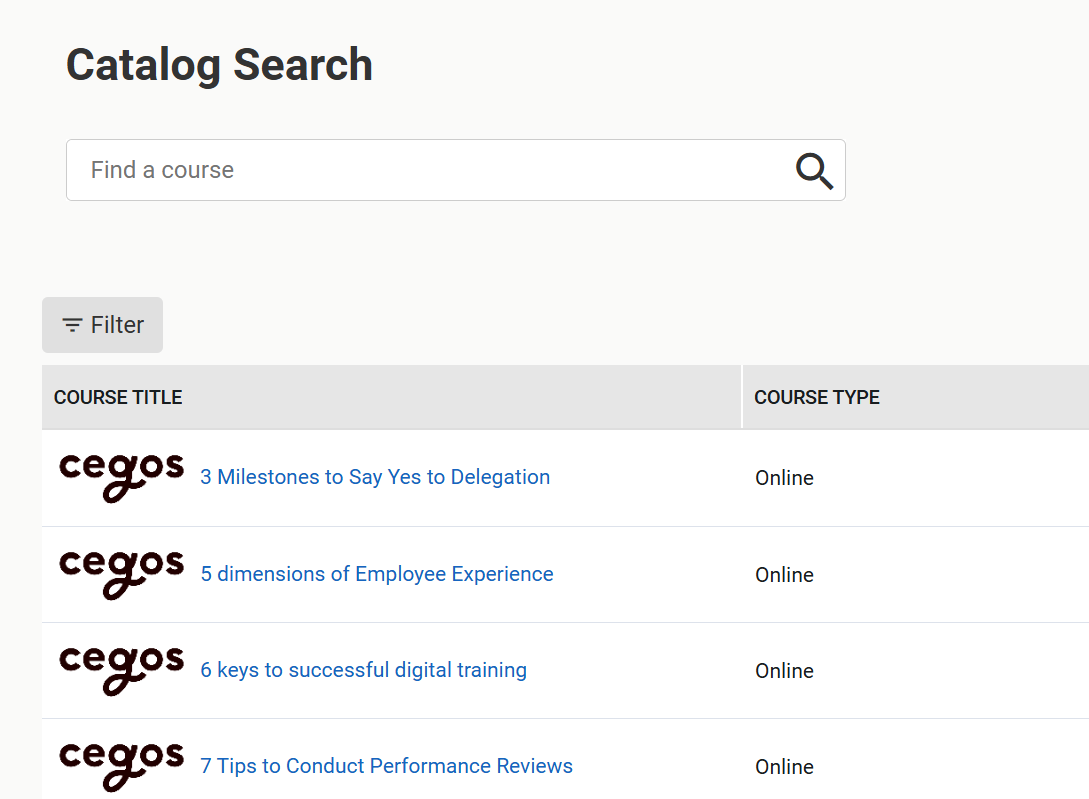

- d) Once you find the course you want, click the course title, then hit Enroll, and click Submit to finalize your enrollment.


Option 2: Browse the course catalog
-
a) Click the Catalog tile on the Home page, or go to Explore > Catalog Browser in the top menu.
-
b) Navigate through the topics and sub-catalogs to discover available learning content.

-
c) When you find a course you’re interested in, click the course title, then select Enroll and click Submit.
Once enrolled, your course will appear under Current Courses on your dashboard. Click the course tile to launch to resume your training anytime.
You may also check the How do I take/resume the courses that I have already enrolled in? section for more details.